Microsoft recently released hardware and software requirements of SharePoint 2010.
After the tests we did, we learned that Microsoft's minimum requirements are necessary for installing the system and ensure proper system performance…
This link to Microsoft TechNet site that contains the requirements:
hardware and software requirements
Saturday, January 16, 2010

Tuesday, January 12, 2010
IIS stop responding - W3WP massive memory Usage
A very common problem in SharePoint portal is W3WP that going crazy. In some cases the memory usage is 900MB to 1GB. Obviously, in this situation the IIS on the Front-End Servers will stop responding.
Two things must be considered.
One – we need to solve the problem, taking into consideration the existing situation. And it will expand down.
Two– we need to consider whether the system hardware can deal with the amount of references to applications. This is because such problems are usually lack of resources - mainly processing capabilities (CPU) or a lack of available memory (RAM).
In such situation I recommend to re-edit the SharePoint Capacity planning…
How to fix the problem:
First we need to log on to the front end servers.
Start the IIS Console. On the portal application pool right-click the mouse and mark properties.
The properties window will open and in the Recycling tab we need to check the "Maximum used memory".
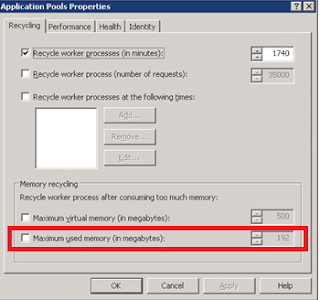
The value that I found is working for me – 500-600MB.
Two things must be considered.
One – we need to solve the problem, taking into consideration the existing situation. And it will expand down.
Two– we need to consider whether the system hardware can deal with the amount of references to applications. This is because such problems are usually lack of resources - mainly processing capabilities (CPU) or a lack of available memory (RAM).
In such situation I recommend to re-edit the SharePoint Capacity planning…
How to fix the problem:
First we need to log on to the front end servers.
Start the IIS Console. On the portal application pool right-click the mouse and mark properties.
The properties window will open and in the Recycling tab we need to check the "Maximum used memory".

The value that I found is working for me – 500-600MB.
Wednesday, December 9, 2009
Important links
Here are some important links that I gathered from Microsoft articles on SharePoint
Microsoft Office SharePoint Server 2007
Security Resource Center for SharePoint Products and Technologies
About performance and capacity planning (Office SharePoint Server)
Plan for redundancy (Office SharePoint Server)
Plan for performance and capacity (Office SharePoint Server)
Performance and Capacity Planning Resource Center for SharePoint Server 2007
Monday, November 23, 2009
Enable Anonymous Access in Windows SharePoint
It's become very common now to use SharePoint servers as Web servers.
For this activity it's necessary to allow anonymous access to the SharePoint portal or a specific site collection.
The routine that required here is pretty simple, but if you miss one of the steps the result is a site that you cannot reach…
Required steps:
1. Modify authentication provider: Central Administration > Application Management > Application Security. Select the required Web Application and change the Zone to anonymous.
All sites under that Web Application are now anonymous enabled.
2. On the Site Collection: Site Action > Site Settings > Advanced Permissions
Select Anonymous Access.
SharePoint 2007 enabled us to allow Anonymous Access to Sites, Document Libraries and lists.
3. When we need to enable Anonymous Access for lists and libraries we need to check this option and browse to the lists or library.
4. From the dropdown menu on the setting tab: Permissions and Management > Permissions for this document library. Select Anonymous Access.
For this activity it's necessary to allow anonymous access to the SharePoint portal or a specific site collection.
The routine that required here is pretty simple, but if you miss one of the steps the result is a site that you cannot reach…
Required steps:
1. Modify authentication provider: Central Administration > Application Management > Application Security. Select the required Web Application and change the Zone to anonymous.
All sites under that Web Application are now anonymous enabled.
2. On the Site Collection: Site Action > Site Settings > Advanced Permissions
Select Anonymous Access.
SharePoint 2007 enabled us to allow Anonymous Access to Sites, Document Libraries and lists.
3. When we need to enable Anonymous Access for lists and libraries we need to check this option and browse to the lists or library.
4. From the dropdown menu on the setting tab: Permissions and Management > Permissions for this document library. Select Anonymous Access.
Tuesday, August 18, 2009
Moving SharePoint DataBase to another SQL Server
This is a guide I wrote to help make this procedure as easy as it can.
You can find more information about "Moving SP to another SQL server" in this site:
microsoft
It is essential to know if you are moving the SP DB to to a different database server or a server with the same name!
This guide is for moving the DB's to a different database server.
Part 1
On the server that is running the Central Administration Web site, stop the following services:
· Microsoft Single Sign-On service
· Office Document Conversions Launcher service
· Office Document Conversions Load Balancer service
· Office SharePoint Server Search service
· Windows SharePoint Services Administration service
· Windows SharePoint Services Search service
· Windows SharePoint Services Timer service
· Windows SharePoint Services Tracing service
· Windows SharePoint Services VSS Writer service
Stop the IIS – CMD - iisreset /stop.
Backup the Content databases for the following SP sites :
· SP site Content DB
· SP Mysite Content DB
· Shared Services DB
· Shared Services Search DB
Backup the top level site with STSADM command:
Stsadm –o backup –url http://spsite/ –filename %system root%:\SPsite.bak
Stsadm –o backup – url http://spmysite/ –filename %system root%:\SPmysite.bak
Part 2
Copy the DB's (LDF & MDF) to the new SQL server:
· SP site Content DB
· SP Mysite Content DB
· Shared Services DB
· Shared Services Search DB
Attach the DB's to the new SQL server – Take online
Run the STSADM command:
stsadm -o renameserver -oldservername-newservername
You can find more about "renameserver" command in this link:
STSADM
Part 3
Log in to the Central Admin.
Start up and configure the services on the farm
Create all web applications exactly as before – use temp DB when you build the DB's.
Redirect the web application to the origin DB's - Application management > content database:
Disconnect all the DB’s for the web applications
Reconnect the origin DB's.
In Central Administration – restore the SSP: Central Administration > Application Management > Manage this Farm's Shared Services - restore the SSP
It worked for me, I hope it'll work for you…
You can find more information about "Moving SP to another SQL server" in this site:
microsoft
It is essential to know if you are moving the SP DB to to a different database server or a server with the same name!
This guide is for moving the DB's to a different database server.
Part 1
On the server that is running the Central Administration Web site, stop the following services:
· Microsoft Single Sign-On service
· Office Document Conversions Launcher service
· Office Document Conversions Load Balancer service
· Office SharePoint Server Search service
· Windows SharePoint Services Administration service
· Windows SharePoint Services Search service
· Windows SharePoint Services Timer service
· Windows SharePoint Services Tracing service
· Windows SharePoint Services VSS Writer service
Stop the IIS – CMD - iisreset /stop.
Backup the Content databases for the following SP sites :
· SP site Content DB
· SP Mysite Content DB
· Shared Services DB
· Shared Services Search DB
Backup the top level site with STSADM command:
Stsadm –o backup –url http://spsite/ –filename %system root%:\SPsite.bak
Stsadm –o backup – url http://spmysite/ –filename %system root%:\SPmysite.bak
Part 2
Copy the DB's (LDF & MDF) to the new SQL server:
· SP site Content DB
· SP Mysite Content DB
· Shared Services DB
· Shared Services Search DB
Attach the DB's to the new SQL server – Take online
Run the STSADM command:
stsadm -o renameserver -oldservername
You can find more about "renameserver" command in this link:
STSADM
Part 3
Log in to the Central Admin.
Start up and configure the services on the farm
Create all web applications exactly as before – use temp DB when you build the DB's.
Redirect the web application to the origin DB's - Application management > content database:
Disconnect all the DB’s for the web applications
Reconnect the origin DB's.
In Central Administration – restore the SSP: Central Administration > Application Management > Manage this Farm's Shared Services - restore the SSP
It worked for me, I hope it'll work for you…
Monday, August 17, 2009
SharePoint 2010 Sneak Peek
Microsoft releases sneak peeks of SharePoint 2010.
You can get a good sense of the application and look and feel overview.
link: SP 2010
You can get a good sense of the application and look and feel overview.
link: SP 2010
Thursday, August 6, 2009
How to fix Blank IIS
From time to time I came across SharePoint farms that have a blank IIS server, in some cases the IIS MMC stops responding at all. Those errors accompany by event log errors:
o Event ID 6398
o Event ID 6482
o Event ID 7076

My first action is to reset the IIS – this fix the problem for a short while…
To fix this errors permanently we need to install the appropriate hotfix and restart the server. If you have multiple servers farm, the hotfix must be apply on all servers
The link to download the fix:
link
Monday, August 3, 2009
Lockdown Feature
When publishing Web portal, most of the time we to want prevent users from accessing the application pages: _layouts/…/default.aspx
The reason to activate this feature in an internet environment is to change the permissions level of the anonymous users group Limited Access privilege. Because there is no way to change these permissions through the UI, we need to use this Feature.
The Lockdown feature removes the View Application Pages permission, and the Use Remote Interfaces permission. This is helpful in preventing users from accessing application pages on a public facing/Internet web site
The Command:
stsadm -o activatefeature -url-filename ViewFormPagesLockDown\feature.xml
Note: this is the same like on all features, we can deactivate this feature (unlocked):
stsadm -o deactivatefeature -url-filename ViewFormPagesLockDown\feature.xml
Link to Microsoft LockDown syntax: LINK
The reason to activate this feature in an internet environment is to change the permissions level of the anonymous users group Limited Access privilege. Because there is no way to change these permissions through the UI, we need to use this Feature.
The Lockdown feature removes the View Application Pages permission, and the Use Remote Interfaces permission. This is helpful in preventing users from accessing application pages on a public facing/Internet web site
The Command:
stsadm -o activatefeature -url
Note: this is the same like on all features, we can deactivate this feature (unlocked):
stsadm -o deactivatefeature -url
Link to Microsoft LockDown syntax: LINK
Tuesday, July 28, 2009
Error: Failed to upgrade SharePoint Products and Technologies
The scenario:
When I try to add a new Web server to an existing farm with no Web applications, after installing the server I ran the SharePoint Products and Technologies Configuration Wizard & receive the following error message:
An exception of type-Microsoft.SharePoint.PostSetupConfiguration.PostSetupConfigurationTaskException was thrown. Additional exception information: Failed to upgrade SharePoint Products and Technologies.
And additionally, the Upgrade.log file contains the following error message:
The access control list on %system root%\Program Files\ Common Files \Microsoft Shared\Web server extensions\12\template\layouts\Web.config could not be modified because the path could not be located in the file system.
Why it happened?
This error occurs when the SharePoint Products and Technologies Configuration Wizard cannot locate or modify the Web.config file.
The reason for this error was because the SharePoint Products and Technologies Configuration Wizard cannot locate or modify the Web.config file - which was supposed to be in the 12\template\Layouts folder
How can I fix it?
When I try to add a new Web server to an existing farm with no Web applications, after installing the server I ran the SharePoint Products and Technologies Configuration Wizard & receive the following error message:
An exception of type-Microsoft.SharePoint.PostSetupConfiguration.PostSetupConfigurationTaskException was thrown. Additional exception information: Failed to upgrade SharePoint Products and Technologies.
And additionally, the Upgrade.log file contains the following error message:
The access control list on %system root%\Program Files\ Common Files \Microsoft Shared\Web server extensions\12\template\layouts\Web.config could not be modified because the path could not be located in the file system.
Why it happened?
This error occurs when the SharePoint Products and Technologies Configuration Wizard cannot locate or modify the Web.config file.
The reason for this error was because the SharePoint Products and Technologies Configuration Wizard cannot locate or modify the Web.config file - which was supposed to be in the 12\template\Layouts folder
How can I fix it?
1. simply copy the Web.config file from the following folder:
%system root%\Program Files\ Common Files\Microsoft Shared\Web server extensions\12\Config
2. plant it in the following folder:
%%system root%\Program Files\ Common Files\Microsoft Shared\Web server extensions\12\Template\Layouts.
3. Run the SharePoint Products and Technologies Configuration Wizard again
Microsoft Technet link
Tuesday, July 21, 2009
Error: The database is not consistent with the expected database schema version
After upgrade from standard license to an enterprise version of SharePoint 2007, one of my customers Starts to notice a repeated error in the event log under the application section.
Event Type: Error
Event Source: Windows SharePoint Services 3
Event Category: Topology
Event ID: 5617
The error massage was:
The schema version (3.0.149.0) of the database SharePoint_AdminContent_xxxxxxxxxxxxxxxxxx on x64a is not consistent with the expected database schema version (3.0.150.0) on XXX. Connections to this database from this server have been blocked to avoid data loss. Upgrade the web front end or the content database to ensure that these versions match
The Solution was very simple:
stsadm -o upgrade -inplace -url http://{relevant central_admin_url}
In my case that seemed to have solved the problem.
Event Type: Error
Event Source: Windows SharePoint Services 3
Event Category: Topology
Event ID: 5617
The error massage was:
The schema version (3.0.149.0) of the database SharePoint_AdminContent_xxxxxxxxxxxxxxxxxx on x64a is not consistent with the expected database schema version (3.0.150.0) on XXX. Connections to this database from this server have been blocked to avoid data loss. Upgrade the web front end or the content database to ensure that these versions match
The Solution was very simple:
stsadm -o upgrade -inplace -url http://{relevant central_admin_url}
In my case that seemed to have solved the problem.
Thursday, June 18, 2009
Additions to this Web site have been blocked
Last week I bump into new error after installing MOSS SP2 in one of our customer’s servers.
"Additions to this Web site have been blocked."
This is a Familiar problem in system with Quota templates.
I can log into the site but I can’t add or open documents and/or creating new sites and document library. The site collection was locked and unavailable for read or write access
The strange thing is that Quota was not enabled on this Site Collection, but it locks the databases anyway.
To repair this error all you need to do is go central administration -> Application Management -> Site Collection Quotas and locks
Change the setting on “Site lock Information” to “Not locked”.In my case it was on “Adding content prevented
"Additions to this Web site have been blocked."
This is a Familiar problem in system with Quota templates.
I can log into the site but I can’t add or open documents and/or creating new sites and document library. The site collection was locked and unavailable for read or write access
The strange thing is that Quota was not enabled on this Site Collection, but it locks the databases anyway.
To repair this error all you need to do is go central administration -> Application Management -> Site Collection Quotas and locks
Change the setting on “Site lock Information” to “Not locked”.In my case it was on “Adding content prevented
Wednesday, June 3, 2009
PDF iFilter in MOSS Systems
How to install the PDF iFilter & Add to your system pdf files that are searchable with Icon.
Download the latest Adobe PDF IFilter from
adobe
Stop the IIS service.
Run the Adobe PDF IFilter Setup file on your MOSS server.
Download from the Web ICPDF.GIF icon and save it on your Server.
Copy the ICPDF.GIF file to: "C:\Program Files\Common Files\Microsoft Shared\Web Server Extensions\12\Template\Images"
Open: "C:\Program Files\Common Files\Microsoft Shared\Web server extensions\12 \Template\ Xml\ DOCICON.XML"
Add the following to syntax for the .pdf type:
Run iisreset
Add the .pdf file type in the following list:
Central Administration - Shared Services (SSP) - Search Settings - File Types
Add the new file type: pdf
Perform a full crawl of your SharePoint content source.
Download the latest Adobe PDF IFilter from
adobe
Stop the IIS service.
Run the Adobe PDF IFilter Setup file on your MOSS server.
Download from the Web ICPDF.GIF icon and save it on your Server.
Copy the ICPDF.GIF file to: "C:\Program Files\Common Files\Microsoft Shared\Web Server Extensions\12\Template\Images"
Open: "C:\Program Files\Common Files\Microsoft Shared\Web server extensions\12 \Template\ Xml\ DOCICON.XML"
Add the following to syntax for the .pdf type:
Run iisreset
Add the .pdf file type in the following list:
Central Administration - Shared Services (SSP) - Search Settings - File Types
Add the new file type: pdf
Perform a full crawl of your SharePoint content source.
Monday, May 18, 2009
Rename Content DB when moving Databases from MOSS servers
When we need to copy/move Database from MOSS server to another MOSS, there are times that we need to change the Content DB (WSS_Content) name.
The fastest way to do so is to backup the DataBase on the source server SQL and restore the DataBase to the destination server SQL. On the restore window in SQL we can determine the name of the DataBase that we want to restore. Now we can name the DataBase whatever we want.
The fastest way to do so is to backup the DataBase on the source server SQL and restore the DataBase to the destination server SQL. On the restore window in SQL we can determine the name of the DataBase that we want to restore. Now we can name the DataBase whatever we want.
Wednesday, May 13, 2009
SharePoint Server 2010 Preliminary System Requirements
Microsoft published System requirements for SharePoint Server 2010:
- SharePoint Server 2010 will be 64-bit only.
- SharePoint Server 2010 will require 64-bit Windows Server 2008 or 64-bit Windows Server 2008 R2.
- SharePoint Server 2010 will require 64-bit SQL Server 2008 or 64-bit SQL Server 2005.
In the Browsers section - XHTML 1.0 compliant, including Internet Explorer 7, Internet Explorer 8 and Firefox 3.x. running on Windows Operating Systems.
Microsoft also said: “we’re planning on an increased level of compatibility with Firefox 3.x and Safari 3.x on none-Windows Operating Systems. Due to this focus Internet Explorer 6 will not be a supported browser for SharePoint Server 2010.
So, what can you do today to get into the best shape for SharePoint Server 2010?
Start by ensuring new hardware is 64-bit. Deploying 64-bit is our current best practice recommendation for SharePoint 2007.
Deploy Service Pack 2 and take a good look at the SharePoint 2010 Upgrade Checker that’s shipped as part of the update. The Upgrade Checker will scan your SharePoint Server 2007 deployment for many issues that could affect a future upgrade to SharePoint 2010.
Get to know Windows Server 2008 with SharePoint 2007, this post is a great starting point.
Consider your desktop browser strategy if you have large population of Internet Explorer 6 users.
Continue to follow the Best Practices guidance for SharePoint Server 2007.
Keep an eye on this blog for updates and more details in the coming months.
IIS not responding
From time to time I came in to a problem in IIS server that hosted MOSS & WSS web sites – the IIS console (IIS 6 manager) is blank and/or Content Deployment schedules don’t work. Restart of IIS is required to resolve the problem (or not). Usually I find in the event viewer the following events: 6398, 6482, 7076, 5325, 4958
Microsoft kb 946517 - http://support.microsoft.com/kb/946517 provides a Hot fix that fix's the problem.
Microsoft kb 946517 - http://support.microsoft.com/kb/946517 provides a Hot fix that fix's the problem.
Wednesday, May 6, 2009
MOSS 2007 and WSS 3.0 Service Pack 2 has been officially arrived
MOSS 2007 and WSS 3.0 Service Pack 2
highlights for the SharePoint Service Pack 2:
Improved Read-only Content Databases
Whenever a content database is marked read-only, all of the site collections in that database are automatically marked as read-only.
ECM Performance and Manageability
Improvements Improved performance and manageability in variations, including STSADM commands for repairing links between source and target pages.
Improved Index Rebuild Timer Jobs
SharePoint content databases running in SQL Server 2005 will undergo an automatic index rebuild, which helps stop defragmentation, and stop the database from degrading in performance.
Upgrade Checker
This will scan your SharePoint farm in advance of applying SP2 and will provide feedback on the environments readiness to upgrade.
Downloads:
MOSS SP2 - http://www.microsoft.com/downloads/details.aspx?FamilyID=b7816d90-5fc6-4347-89b0-a80deb27a082&displaylang=en
WSS 3.0 SP2 - http://www.microsoft.com/downloads/details.aspx?familyid=79BADA82-C13F-44C1-BDC1-D0447337051B&displaylang=en
highlights for the SharePoint Service Pack 2:
Improved Read-only Content Databases
Whenever a content database is marked read-only, all of the site collections in that database are automatically marked as read-only.
ECM Performance and Manageability
Improvements Improved performance and manageability in variations, including STSADM commands for repairing links between source and target pages.
Improved Index Rebuild Timer Jobs
SharePoint content databases running in SQL Server 2005 will undergo an automatic index rebuild, which helps stop defragmentation, and stop the database from degrading in performance.
Upgrade Checker
This will scan your SharePoint farm in advance of applying SP2 and will provide feedback on the environments readiness to upgrade.
Downloads:
MOSS SP2 - http://www.microsoft.com/downloads/details.aspx?FamilyID=b7816d90-5fc6-4347-89b0-a80deb27a082&displaylang=en
WSS 3.0 SP2 - http://www.microsoft.com/downloads/details.aspx?familyid=79BADA82-C13F-44C1-BDC1-D0447337051B&displaylang=en
Microsoft Best Practices Analyzer for Windows SharePoint Services 3.0 and the 2007 Microsoft Office System
Microsoft Best Practices Analyzer for Windows SharePoint Services 3.0 and the 2007 Microsoft Office System
The Microsoft Best Practices Analyzer for Microsoft Windows SharePoint Services 3.0 and the 2007 Microsoft Office System creates detailed reports to help administrators achieve greater
performance, scalability, and uptime
Download:
http://http//www.microsoft.com/downloads/details.aspx?familyid=cb944b27-9d6b-4a1f-b3e1-778efda07df8&displaylang=en
The Microsoft Best Practices Analyzer for Microsoft Windows SharePoint Services 3.0 and the 2007 Microsoft Office System creates detailed reports to help administrators achieve greater
performance, scalability, and uptime
Download:
http://http//www.microsoft.com/downloads/details.aspx?familyid=cb944b27-9d6b-4a1f-b3e1-778efda07df8&displaylang=en
Wednesday, January 28, 2009
Moss Version Numbers
To find your SharePoint version (The version that you currently have), you need to enter the Site Setting. In the middle of the screen you can see the version No’.
Note that if you have more than one server in the farm, you need to match the version number on all the servers. Every service pack, update or hotfix that you install mast be applied on all the farms.
Moss/WSS 3.0 version numbers:
MOSS 2007 or WSS 3.0 SP2 12.0.0.6421
MOSS 2007 or WSS 3.0 Cumulative update (KB956056 & KB956057) 12.0.0.6327
MOSS 2007 or WSS 3.0 Infrastructure Update (KB951695 & KB951297) 12.0.0.6318
MOSS 2007 or WSS 3.0 post-SP1 hotfix (KB948945) 12.0.0.6303
MOSS 2007 or WSS 3.0 post-SP1 hotfix (KB941274) 12.0.0.6301
MOSS 2007 or WSS 3.0 post-SP1 hotfix (KB941422) 12.0.0.6300
MOSS 2007 or WSS 3.0 SP1 12.0.0.6219
MOSS 2007 or WSS 3.0 October 08 public update 12.0.0.6039
MOSS 2007 or WSS 3.0 August 24, 2007 hotfix package 12.0.0.6036
MOSS 2007 or WSS 3.0 RTM 12.0.0.4518
Beta versions:
MOSS 2007 or WSS 3.0 Beta 2 TR: 12.0.0.4407
MOSS 2007 or WSS 3.0 Beta 2: 12.0.0.4017
Note that if you have more than one server in the farm, you need to match the version number on all the servers. Every service pack, update or hotfix that you install mast be applied on all the farms.
Moss/WSS 3.0 version numbers:
MOSS 2007 or WSS 3.0 SP2 12.0.0.6421
MOSS 2007 or WSS 3.0 Cumulative update (KB956056 & KB956057) 12.0.0.6327
MOSS 2007 or WSS 3.0 Infrastructure Update (KB951695 & KB951297) 12.0.0.6318
MOSS 2007 or WSS 3.0 post-SP1 hotfix (KB948945) 12.0.0.6303
MOSS 2007 or WSS 3.0 post-SP1 hotfix (KB941274) 12.0.0.6301
MOSS 2007 or WSS 3.0 post-SP1 hotfix (KB941422) 12.0.0.6300
MOSS 2007 or WSS 3.0 SP1 12.0.0.6219
MOSS 2007 or WSS 3.0 October 08 public update 12.0.0.6039
MOSS 2007 or WSS 3.0 August 24, 2007 hotfix package 12.0.0.6036
MOSS 2007 or WSS 3.0 RTM 12.0.0.4518
Beta versions:
MOSS 2007 or WSS 3.0 Beta 2 TR: 12.0.0.4407
MOSS 2007 or WSS 3.0 Beta 2: 12.0.0.4017
Monday, January 19, 2009
LoadBalancer.RegisterLauncher failed
Here's an irritating error that I bump into lately:
Event Source: Office SharePoint Server Event
Category: Launcher Service
Event ID: 6102
User: N/A
Description: LoadBalancer.RegisterLauncher failed: Unable to connect to the remote server.
This error usually happens when Document Conversions Load Balancer Service is using a wrong service account.
To resolve this error Try the following steps:
This error usually happens when Document Conversions Load Balancer Service is using a wrong service account.
To resolve this error Try the following steps:
1. Configuring the proper Service Accounts
- Central Administration -> Operations.
- Security Configuration -> Service account.
- Click the Windows Service radio button -> select Document Conversions Load Balancer Service.
- Fill in the proper service account.
2. restarting the services.
- Central Administration -> Operations -> Services on Server.
- Click Stop on the Document Conversions Load Balance Service. …And stop the Document Conversions Launcher Service too.
- Start the services and the error will not appear again.
After this procedure the error will disappear.
Wednesday, January 14, 2009
Infrastructure Update
About a two months, Microsoft has released a significant update: Infrastructure Update.
One of the problems that the Following updates fix’s, is addresses that are not available when exposed by AAM(Alternate Access Mapping in conjunction with reverse proxy or NLB solution.
This KB fix the Bugs - KB951695
Here’s a link Http://support.microsoft.com/kb/956248
Subscribe to:
Posts (Atom)

 Posts


